Fix scp and sftp transfer errors on Synology ssh
Say you want to transfer a file via scp in your terminal or sftp via an SFTP app like Transmit or Filezilla, etc.
If you have a non-standard port set for ssh access, as is often recommended, you can add a line for Port to your ~/.ssh/config file like so:
host syno
Hostname my-synology-nas.local
Port 6789
User my-admin-username
IdentityFile ~/.ssh/my-private-key
This works great, as you can then type the following for passwordless login:
ssh synoWrong port number
I tend to think of scp as being the same as ssh but it is not. If you try and do this, it will fail silently
scp ~/my-local-file.zip my-admin-username@syno:~With the -vvv (verbose) option, we can start to work out why:
[...]
debug1: Connecting to my-synology-nas.local port 6789.
debug1: Connection established.
debug1: identity file ~/.ssh/my-private-key
[...]
debug1: Sending subsystem: sftp
debug2: channel 0: request subsystem confirm 1
[...]
subsystem request failed on channel 0
Because the ssh port number differs from the one sftp expects (default 22), ssh is unable to load sftp via ssh. Everything works fine up until sftp is requested, at which point it fails.
Permission errors
The second issue if you succeed in setting the sftp port correctly, you may still see errors like:
scp: dest open "./my-local-file.zip": Permission denied
scp: failed to upload file ~/my-local-file.zip to ~
Because the ssh user automatically logs into their home folder ~ but sftp does not automatically get permissions, you can't put the file into its destination.
Legacy workaround
Using the -O flag (that's the uppercase letter 'O', not the number '0') seems to work around this.1
scp -O ~/my-local-file.zip my-admin-username@syno:~The issue with this, of course is that
- Future generations will remember us by our legacy hacks
- Your SFTP client probably can't do tricks like this
- You'll forget to type
-Osomeday
Fortunately, there's another way.
Solution
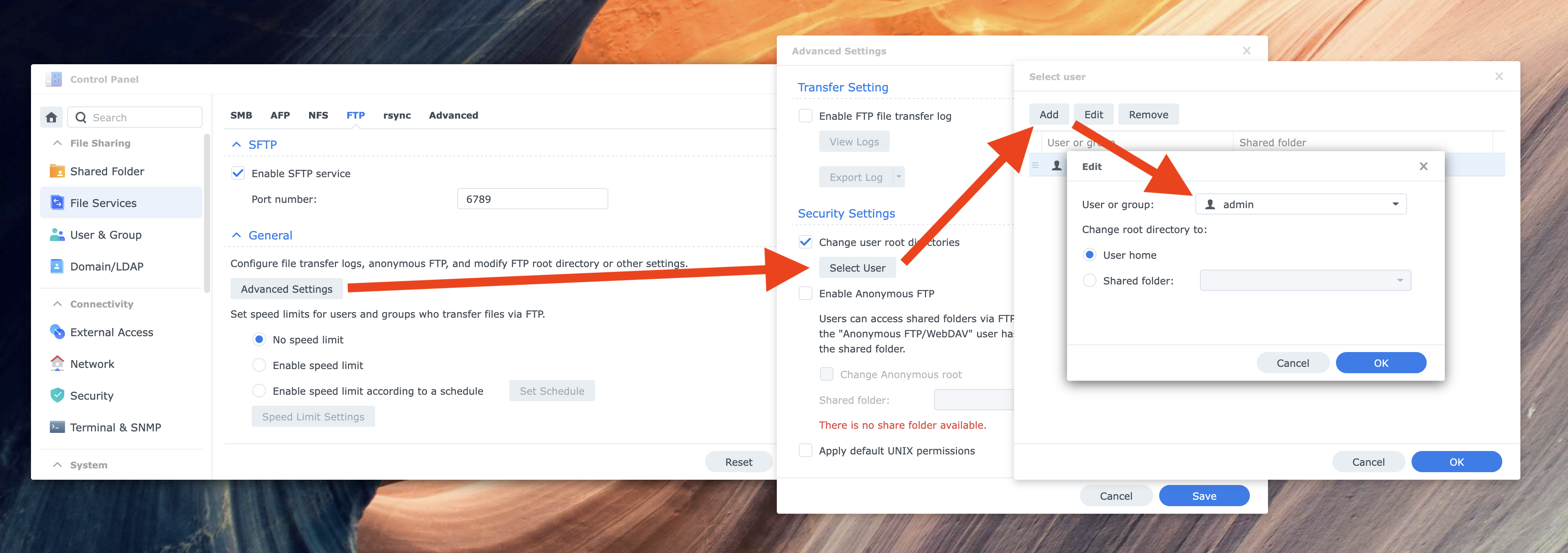
In DSM > Control Panel > File Services > FTP > SFTP:
- "Enable SFTP Service" (checked)
- "Port Number" (set to same as SSH)
Then click the General > "Advanced Settings" button:
- Security Settings > "Change user root directories" (checked)
Then click the "Select User" button:
- Click "Add" button
- Select your ssh user from the dropdown
- Select "User home" radio option
-
"
-OUse the legacy SCP protocol for file transfers instead of the SFTP protocol. Forcing the use of the SCP protocol may be necessary for servers that do not implement SFTP, for backwards‐compatibility for particular filename wildcard patterns and for expanding paths with a~prefix for older SFTP servers." https://stackoverflow.com/a/74597453 ↩